
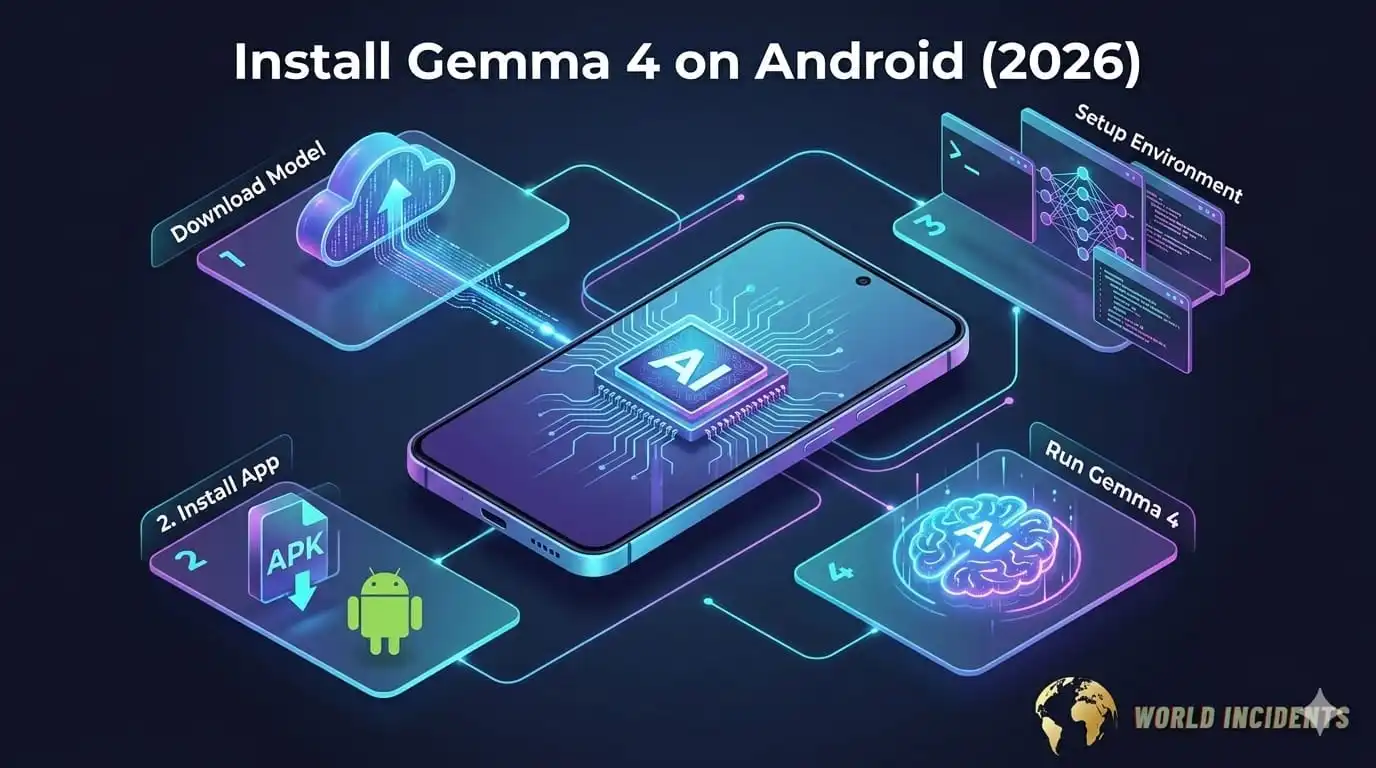
How to Install Gemma 4 Locally on Your Android Phone (2026 Guide)
Running a powerful AI model directly on your Smartphone — without sending any data to the cloud — was once a distant dream. In 2026, it is an accessible reality. Install Gemma 4 locally on your Android device and you unlock Google’s most capable open-source AI model running entirely on your hardware, offline, private, and blazing fast. This ultimate guide walks you through everything you need to know to install Gemma 4 locally on any compatible Android phone — step by step.
What Is Gemma 4 and Why Should You Install It Locally?
Gemma 4 is Google DeepMind’s fourth generation of lightweight, open-weight language models, designed specifically for efficient deployment on consumer hardware — including smartphones. When you install Gemma 4 locally on Android, you get a fully functional AI assistant, code helper, document summarizer, and conversational agent that operates without requiring any internet connection or cloud API calls.
The key advantages of choosing to install Gemma 4 locally rather than using cloud-hosted AI alternatives are substantial: complete data privacy (nothing leaves your device), zero latency from server round-trips, full offline functionality, no monthly subscription costs, and uninterrupted access even in remote locations with no connectivity.
💡 Why Gemma 4 is Ideal for Android
Gemma 4 comes in quantized variants (2B, 4B parameters) specifically optimized for mobile NPUs and ARM processors. Devices with 8GB+ RAM running Android 12 or later can install Gemma 4 locally and achieve response speeds of 15–30 tokens per second — genuinely practical for everyday use.
Device Requirements Before You Install Gemma 4 Locally
Before attempting to install Gemma 4 locally on Android, confirm your device meets these minimum specifications. Attempting installation on incompatible hardware will result in crashes or unusably slow performance.
| Requirement | Minimum | Recommended | Compatible? |
|---|---|---|---|
| RAM | 6 GB | 8 GB or more | Check Settings → About |
| Android Version | Android 12 | Android 14 / 15 | Settings → Software Info |
| Processor | Snapdragon 8 Gen 1 | Snapdragon 8 Gen 3 / Dimensity 9300 | GPU Rendering required |
| Storage Free | 4 GB | 8 GB+ | Internal storage only |
| NPU / AI Chip | Optional | Strongly recommended | Boosts speed 3–5× |
| Internet (Setup) | Required once | For model download only | Offline after install |
Step-by-Step: How to Install Gemma 4 Locally on Android
Follow these steps carefully to successfully install Gemma 4 locally on your Android smartphone. This guide covers both the app-based method (recommended for most users) and the technical manual method for advanced users.
Read More: SENSATIONAL GEMMA 4: GOOGLE’S AI MODEL DOMINATING 2026
Method 1: Using MLC LLM Android App (Recommended)
Settings → Apps → Special App Access → Install Unknown Apps. Enable installation for your browser or file manager. This allows you to sideload the MLC LLM APK, which is required to install Gemma 4 locally on Android.Install and wait for the process to complete. Grant any requested permissions when prompted. The app will appear in your app drawer as “MLC Chat”.Add Model from the main screen. Search for Gemma-4-2B-Instruct-q4f16 (the 4-bit quantized 2B variant — ideal for phones). This is the version most users will want to install Gemma 4 locally with, balancing quality and performance.Download next to Gemma-4-2B. The model file is approximately 1.5–2.4 GB depending on the quantization level. Connect to Wi-Fi for this step. Download progress is shown in-app. This is the only step requiring internet — after this, everything runs entirely offline.Method 2: Using Termux + Python (Advanced Users)
Advanced users who want more control over how they install Gemma 4 locally on Android can use the Termux terminal emulator with llama.cpp or the official Gemma.cpp runtime.
# Step 2: Update packages
pkg update && pkg upgrade -y# Step 3: Install required build tools
pkg install git cmake clang python -y# Step 4: Clone llama.cpp
git clone https://github.com/ggerganov/llama.cpp
cd llama.cpp
# Step 5: Build for Android ARM
cmake -B build -DLLAMA_CUDA=OFF
cmake –build build –config Release -j4
# Step 6: Download Gemma 4 GGUF model
# Place gemma-4-2b-instruct-q4_k_m.gguf in llama.cpp/models/
# Step 7: Run Gemma 4 locally
./build/bin/llama-cli \
-m models/gemma-4-2b-instruct-q4_k_m.gguf \
-n 512 \
-p “You are a helpful assistant.” \
–interactive
⚠️ Important Note
The Termux method requires at least 8 GB RAM and a high-performance processor. Build times can exceed 20–30 minutes on mid-range devices. For most users, Method 1 (MLC Chat) is the recommended way to install Gemma 4 locally on Android without technical complexity.
Optimizing Performance After You Install Gemma 4 Locally
Once you successfully install Gemma 4 locally on your Android device, these optimizations will significantly improve speed and response quality:
- Close background apps: Free up RAM before launching Gemma 4. Even 1–2 GB of additional free RAM makes a measurable difference in inference speed.
- Enable Performance Mode: In Android battery settings, switch to “High Performance” or “Gaming Mode” to prevent thermal throttling during AI inference.
- Use 4-bit quantized models: The Q4 variants of Gemma 4 offer 85–90% of the quality of full-precision models at a fraction of the memory cost — ideal for phones.
- Keep the screen on during inference: Some Android devices throttle CPU/GPU when the screen turns off mid-generation. Adjust screen timeout settings accordingly.
- Use shorter context windows: Setting maximum context to 512–1024 tokens instead of the full 8192 dramatically speeds up response generation on mid-range hardware.
Best Android Phones to Install Gemma 4 Locally in 2026
Not all Android phones deliver the same experience when you install Gemma 4 locally. Here are the top-performing devices for on-device AI in 2026:
- Samsung Galaxy S25 Ultra — Snapdragon 8 Elite + 12 GB RAM = exceptional local AI performance
- Google Pixel 9 Pro XL — Tensor G4 chip with dedicated on-device AI optimizations
- OnePlus 13 — Snapdragon 8 Gen 4 + 16 GB RAM at a competitive price point
- Xiaomi 15 Pro — Snapdragon 8 Gen 4 with impressive thermal management for sustained AI workloads
- ASUS ROG Phone 9 — Gaming-grade cooling makes it one of the fastest sustained-performance devices for local AI
Privacy and Security: The Real Reason to Install Gemma 4 Locally
Beyond the technical achievement, the most compelling reason to install Gemma 4 locally on Android is data sovereignty. Every query you send to a cloud AI service is transmitted to external servers, logged, and potentially used for model training. When you install Gemma 4 locally, your prompts, documents, conversations, and outputs never leave your device. For journalists, lawyers, medical professionals, students, and privacy-conscious individuals worldwide, this distinction is not a minor convenience — it is a fundamental requirement.
Conclusion
The ability to install Gemma 4 locally on an Android smartphone represents one of the most significant democratizations of AI technology in 2026. With the right device and this step-by-step guide, any user worldwide can enjoy a powerful, private, offline AI assistant running entirely on hardware they already own. Whether you follow the beginner-friendly MLC Chat method or the advanced Termux approach, the result is the same: a fully capable AI model in your pocket, beholden to no server, no subscription, and no surveillance. Take control of your AI experience — install Gemma 4 locally today.
Frequently Asked Questions

Meet Md. Rubel Rana
As a core contributor to Worlddincidents.com, Rubel Rana brings a unique perspective to the world of journalism. Whether it’s deep-diving into historical trivia or covering the latest global headlines, Rubel Rana is committed to delivering high-quality, high-impact articles. Their writing blends meticulous research with a compelling voice, helping readers stay informed and curious about the world around them.